NanoKVM – Smart Remote Control for Servers & PCs
Access and manage computers from anywhere with NanoKVM. Get reliable BIOS-level control, virtual media, remote troubleshooting, and secure hardware-based KVM access in one compact solution.
- Open-source software
- Browser-based control
- Built for headless systems
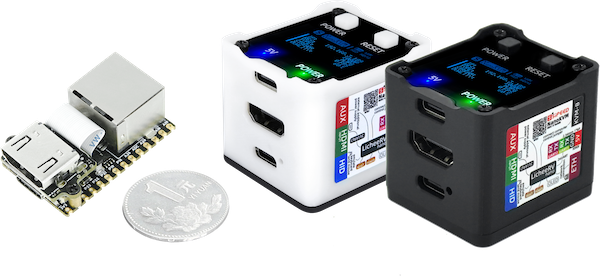
- What is NanoKVM
Remote access without depending on the target OS.
NanoKVM captures a target computer’s HDMI output, emulates USB input devices, and sends the console through the network so you can work from a browser.
See the screen
HDMI capture provides a remote view even before an operating system is fully available.
Control input
USB HID emulation lets remote keyboard and mouse actions reach the target machine.
Operate remotely
Use the browser UI for console work, supported power controls, terminals, and maintenance.
- NanoKVM Family
Pick the form factor that fits the deployment.
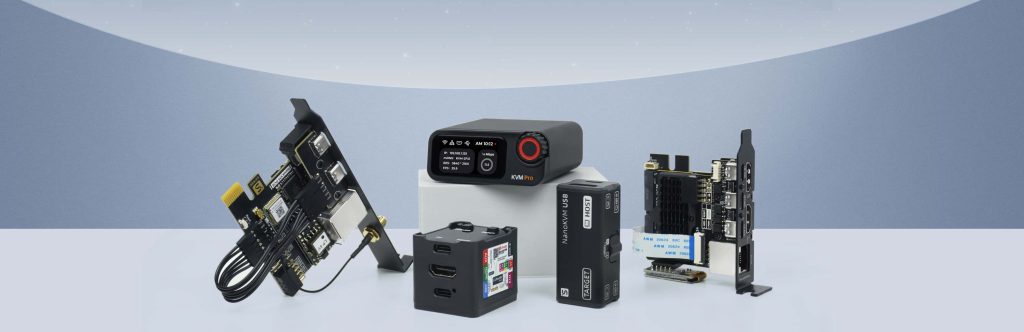
From a compact DIY board to an internal PCIe installation and the higher-performance Pro platform, the family covers homelabs, service benches and more permanent server deployments.
- COMPACT
NanoKVM Cube
Lite for DIY and bulk use; Full adds enclosure, OLED, accessories and ATX power-control hardware.
- INTERNAL
NanoKVM PCIe
An internal chassis form factor with PCIe mounting, multiple power options and optional Wi-Fi / PoE configurations.
- PERFORMANCE
NanoKVM Pro
The higher-performance branch adds up to 4K30 / 2K60, Gigabit Ethernet, hardware-accelerated encoding and expanded connectivity.
- HOW IT WORKS
Three links create a remote console path.
Connect video, USB control and network access. The target machine does not need a special remote-desktop agent for the core KVM workflow.
Target → NanoKVM
HDMI carries the target display while USB provides HID and virtual-media functions.
NanoKVM → Network
Ethernet — and Wi-Fi on supported variants — carries video and control traffic.
Browser → Control
Open the management UI to view the console, use input, mount media and access maintenance features.
- CORE CAPABILITIES
Purpose-built tools for remote maintenance.
NanoKVM combines the essential KVM-over-IP workflow with features that are especially useful when the host is headless, unreachable over software remote desktop, or sitting at a boot screen.
Virtual keyboard/mouse
Control the host through emulated HID devices directly from the browser interface.
- Input control
BIOS / UEFI access
Work before the operating system loads, useful for troubleshooting and provisioning.
- Low-level access
Virtual CD-ROM
Expose installation or recovery media to the target for remote OS setup workflows.
- Virtual media
Power control
Supported hardware can integrate with the motherboard power/reset path for remote state changes.
- Power workflow
Web terminal
Use terminal-oriented tools alongside the KVM console for deeper maintenance tasks.
- Remote tools
Wake-on-LAN
Trigger compatible machines over the network when your deployment supports WOL.
- Remote start
- BROWSER CONSOLE
A control surface designed around the remote screen.
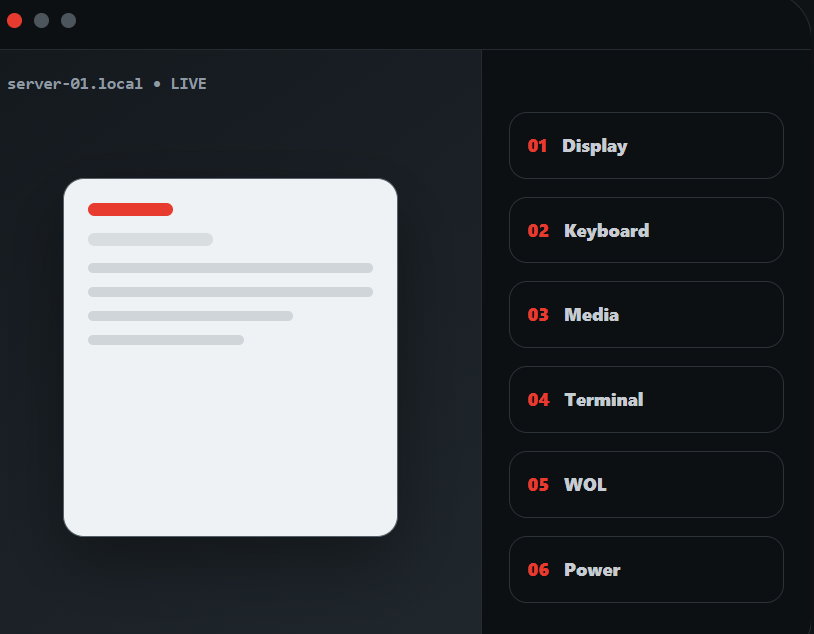
The web interface brings display settings, on-screen keyboard, mouse controls, virtual media, scripts, terminal access, WOL and power functions into a single operational view.
Resolution & quality controls
Adjust transmitted resolution, frame rate and compression quality to suit the link.
On-screen tools
Access keyboard, mouse style, full-screen controls and utility actions without leaving the KVM page.
- POWER & RECOVERY
Operate when software remote access cannot.
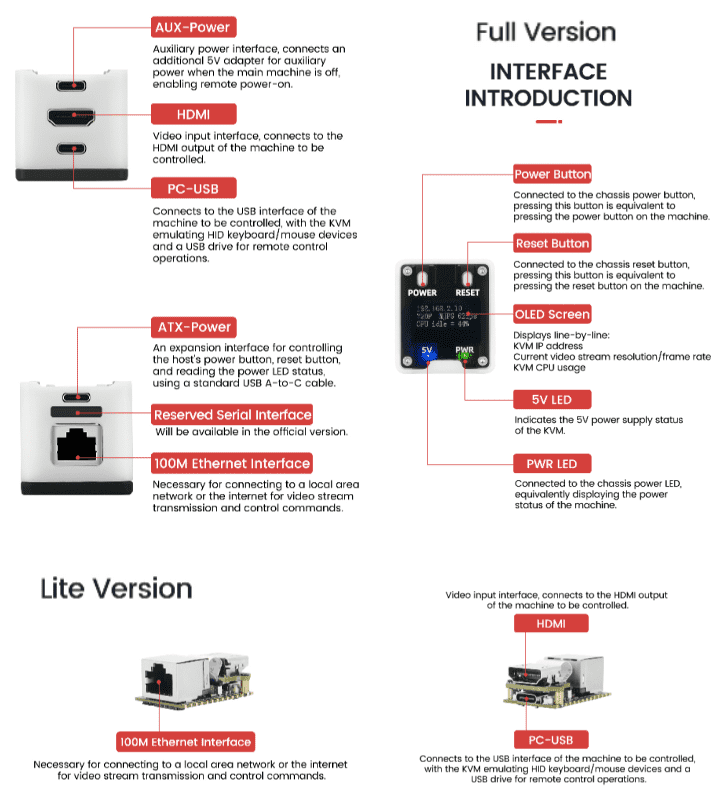
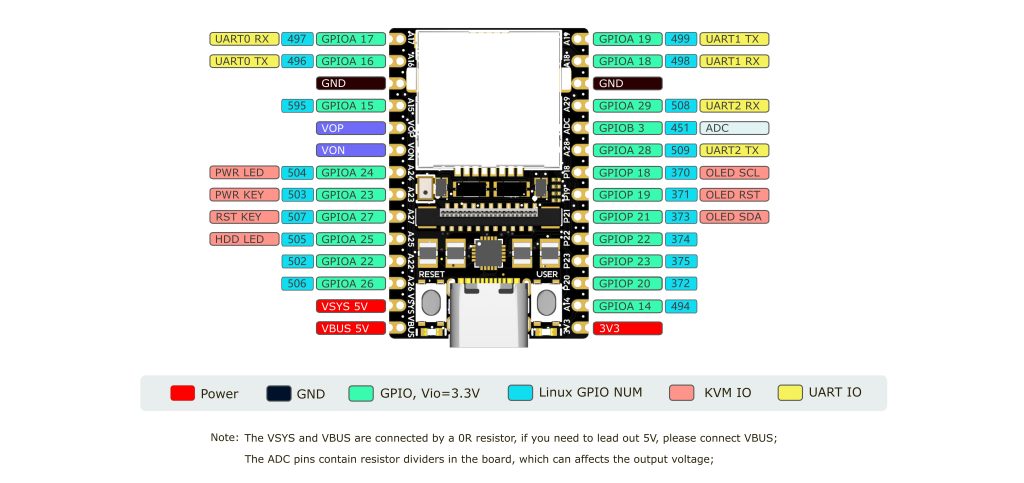
On supported NanoKVM hardware, remote power integration can help with frozen hosts, cold starts, resets and recovery procedures.
Power on / off
ATX control path
Force reset
Hardware reset action
Power state
Status indication
WOL
Network wake option
- VIRTUAL MEDIA
Install, recover and service systems remotely.
The KVM can present storage to the target so you can handle operating-system installs and recovery workflows without being physically beside the machine.
Mount installation media
Use virtual CD-ROM functionality for supported image-mounting workflows.
Boot and provision
Combine virtual media with BIOS/UEFI access to select boot targets and configure machines.
Recover inaccessible hosts
Useful when SSH, RDP or other OS-level services are unavailable.
- NETWORK & ACCESS
Keep console traffic separate from the host OS.
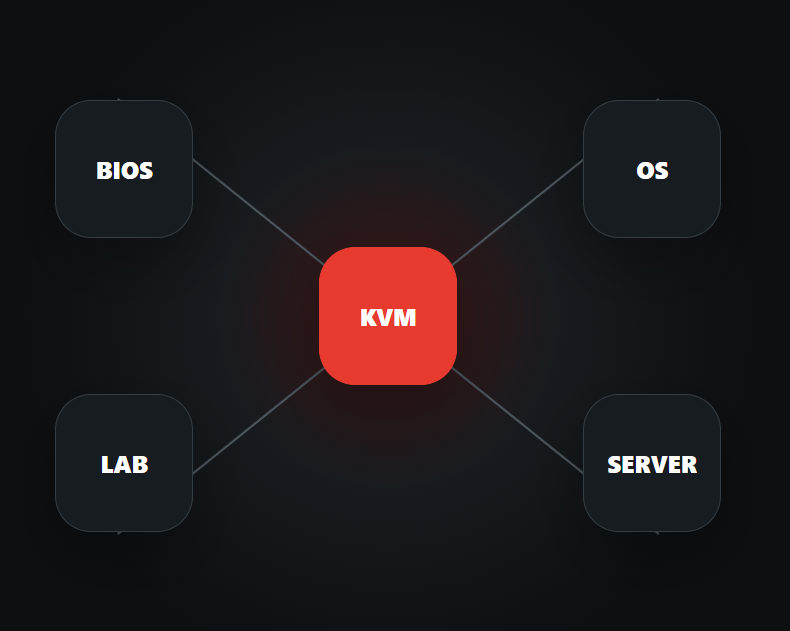
NanoKVM’s network-facing management path gives you another route to the machine when its own network stack is broken, misconfigured or not yet booted.
100M Ethernet
Cube/PCIe-class NanoKVM uses 100M Ethernet for KVM traffic.
1GbE on Pro
NanoKVM Pro upgrades network throughput and supports expanded connectivity options.
Optional Wi-Fi
Available on supported PCIe and Pro configurations for flexible deployments.
Open source
Software sources are published, enabling community inspection and contribution.
- WHERE IT FITS
Useful anywhere physical access is inconvenient.
NanoKVM is especially practical for machines that need occasional low-level intervention but normally run unattended.
Homelab servers
Recover a headless box, change BIOS settings, or reinstall an OS from another room.
Remote offices
Give technical staff a console path to machines at distant sites.
Edge & embedded
Work with SBCs and appliance-style systems that may not have a local display.
Service benches
Centralize keyboard, video and mouse access while testing multiple machines.
- QUICK SETUP
From cables to browser in a short path.
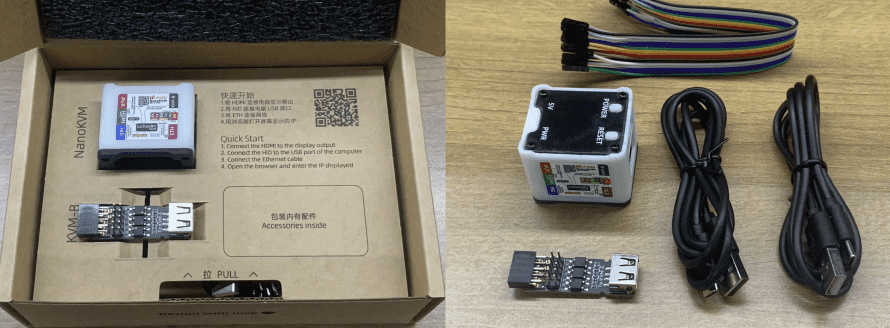
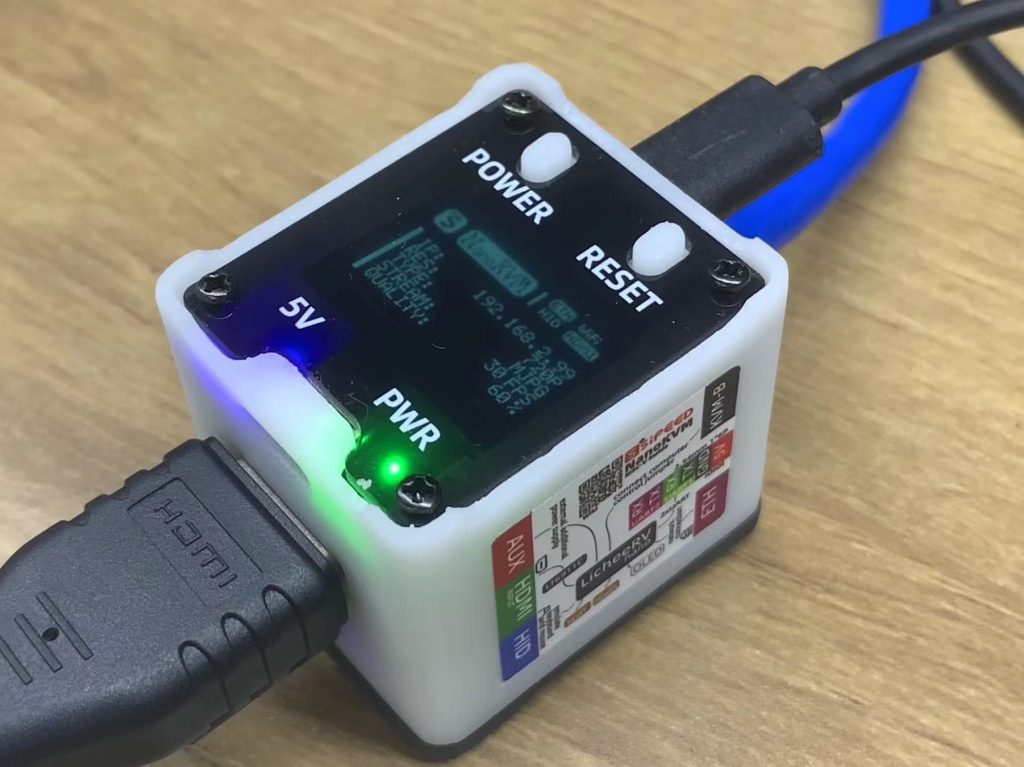
A typical Cube Full setup uses USB, HDMI and Ethernet connections. Power-control workflows add the supported ATX board connection.
Connect HDMI & USB
Link the target display output and HID/data connection to NanoKVM.
Connect the network
Use Ethernet, or supported wireless configuration where available.
Open the web UI
Find the device IP, sign in, update the application, and begin remote operation.
- MODEL SNAPSHOT
Key differences at a glance.
Specifications can change by revision and configuration; verify the exact product page before purchasing or deploying.
- FAQ's
Common NanoKVM questions
Concise answers for users comparing models or planning a first deployment.
NanoKVM is a compact, network-based KVM (Keyboard, Video, Mouse) over IP device that lets you remotely access, monitor, and control a computer at the BIOS/OS level — even when the target machine is powered off, frozen, or has no OS installed.
NanoKVM works with almost any device that has a standard HDMI/VGA video output and USB port, including desktop PCs, servers, mini PCs, and workstations, regardless of the operating system installed.
Yes, NanoKVM captures video output directly at the hardware level, so you can view and interact with the BIOS/UEFI screen remotely, just like sitting in front of the machine.
Yes, NanoKVM can be accessed over your local network, and also remotely over the internet through supported cloud/relay connection options, depending on your firmware version and network setup.
Yes, since NanoKVM operates at the hardware video/USB level, it is operating-system independent and works the same way regardless of whether the target runs Windows, Linux, or macOS.
Yes, several NanoKVM hardware variants are built around Raspberry Pi Compute Module boards, giving them a compact footprint while running full network and video capture stacks.
NanoKVM typically supports common resolutions up to 1080p depending on the hardware revision, which is sufficient for BIOS access, OS installation, and general remote administration tasks.
Yes, because NanoKVM connects through standard video and USB interfaces rather than software agents, it works with both ARM-based and x86-based servers without needing any drivers on the target machine.
NanoKVM's web interface is generally accessible from any modern Chromium-based or Firefox browser, though for the smoothest video/input performance a recent Chromium-based browser is usually recommended.
Many users 3D-print or buy small enclosures/rack brackets for NanoKVM thanks to its compact size, making it easy to tuck alongside servers in a rack or cabinet.
Official NanoKVM firmware and flashing tools are available from the manufacturer's official website or GitHub releases page — always avoid downloading firmware from unofficial third-party sources.
It's recommended to update to the latest official firmware after unboxing, as newer versions typically improve stability, add remote-access features, and fix known bugs.
Yes, most NanoKVM models support virtual media, allowing you to mount ISO images or USB storage remotely for OS installation and recovery tasks.
Yes, NanoKVM emulates a physical USB keyboard and mouse, so input from your remote session is sent directly to the target machine as if a real keyboard and mouse were plugged in.
Yes, NanoKVM's compact size and low power consumption make it popular for home labs, self-hosted server racks, and small-scale remote management setups.
Check the HDMI/VGA cable connection at both ends, confirm the target machine is actually outputting video, and try a firmware reflash or power cycle of the NanoKVM device if the signal still doesn't appear.
Confirm the Ethernet cable is properly connected, check your router's DHCP client list for the device's assigned IP, and make sure the NanoKVM firmware has fully booted before trying to connect.
Most NanoKVM devices support a factory reset through the web admin panel or a physical reset button/pin combination — check your specific hardware revision's documentation for the exact steps.
Input lag is usually caused by a weak network connection, an overloaded browser tab, or high video bitrate settings — try lowering resolution/quality in the web UI or switching to a wired network connection.
Most NanoKVM boards support a recovery/rescue mode (often via an SD card image or a specific boot-pin combination) that lets you re-flash clean firmware even after a failed update.